How to download OS for your Raspberry Pi
Last updated:
What you need
-
Raspberry Pi
- Any Raspberry Pi will do
-
MicroSD card
- Used as the storage/hard drive for the Pi
- 16GB or larger recommended.
-
A PC or Mac
- To download the software
-
A MicroSD Card Reader
- To transfer the software to the MicroSD card
-
Keyboard and mouse
- For input
-
Monitor
- With HDMI cable (micro HDMI on Pi 4 and 5)
What to do
-
Download Raspberry Pi Imager
Go to raspberrypi.com (opens in a new tab).
Open the menu in the top right corner and choose Software.
Download Raspberry Pi Imager by clicking Download for your operating system (Windows, Mac, or Linux).
-
Transfer the image file to the MicroSD card.
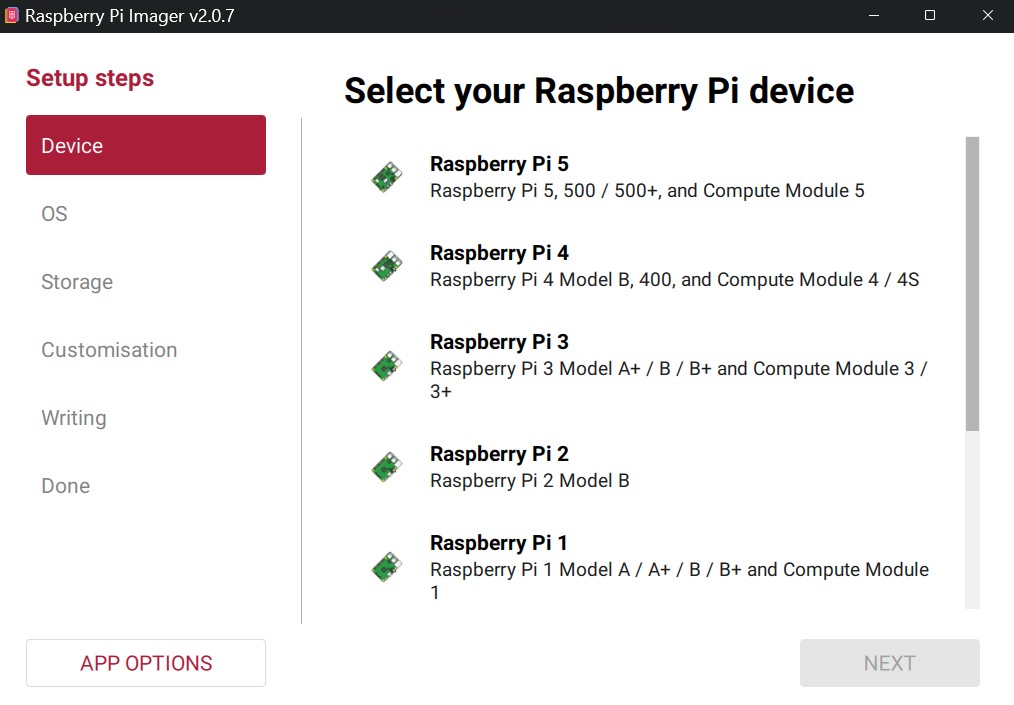
Open Raspberry Pi Imager and select your Raspberry Pi device.
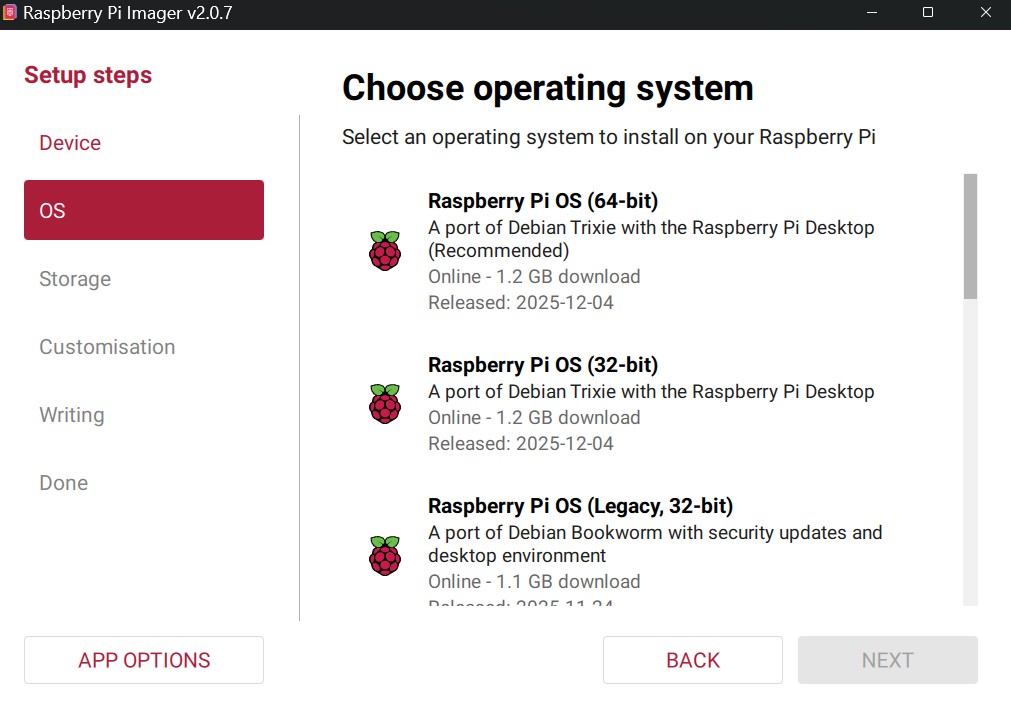
Choose operating system. If you don't know which one to select, you can most likely choose "Raspberry Pi OS (64-bit)". Then click "Next".
Select Storage. Here you select your MicroSD card. Remember this will format your card and all data will be lost, so make sure you don't have anything on it that you want to keep.
Press "Write" and wait until the process has finished.
-
You can now put your MicroSD card in your Raspberry Pi.